.png?raw=true)
Top Free Video Editing Software for Low-End PCs (2026 Guide)


Introduction
Not everyone has access to a high-end PC with a powerful graphics card and the latest processor — and that’s completely fine. Many creators, students, teachers, and beginners work on older or low-end computers but still want to produce high-quality videos for YouTube, TikTok, Facebook, or school projects. The biggest misconception is that video editing always requires expensive software and high-performance machines. In reality, with the right free video editing tools, even a modest computer can handle most editing tasks smoothly.
Low-end PCs are often limited by lower RAM, older CPUs, and integrated graphics, which can make heavy software like Adobe Premiere Pro or Final Cut Pro almost unusable. But thanks to modern lightweight editors, you don’t have to compromise on your creativity. These editors are specifically designed to run efficiently on older hardware while still offering a surprising number of professional features, such as trimming, adding transitions, basic effects, audio editing, and exporting in popular formats. This means you can create polished videos without worrying about lag, crashes, or software licenses.
In this guide, we’ll take a deep dive into the best free video editing software for low-end PCs in 2026. For each editor, you’ll learn the minimum system requirements, what types of projects they are best suited for, their pros and cons, and step-by-step installation instructions. Whether you want to make short TikTok clips, educational videos, family videos, or start your YouTube journey, this guide will help you choose a tool that works well on your computer and fits your skill level.
By the end of this article, you’ll understand which free video editor is right for your needs and how to get started without spending a single dollar. With the tips and recommendations in this guide, you’ll see that editing high-quality videos doesn’t require a high-end PC — just the right software, a little patience, and creativity.
📑 Table of Contents
- What Is a Low-End PC?
- Things to Consider Before Choosing a Video Editor
- Top Free Video Editors for Low-End PCs
- Comparison Table
- How to Install Video Editing Software
- Best Video Editor by Use Case
- Tips to Edit Smoothly on Low-End PCs
- Conclusion
- Frequently Asked Questions
What Is a Low-End PC?
A low-end PC usually has:
- 2GB to 4GB RAM
- Older Intel or AMD processor
- No dedicated graphics card
- HDD instead of SSD
If your computer struggles with heavy software like Adobe Premiere Pro — this guide is for you.
Things to Consider Before Choosing a Video Editor
Before installing any video editor, keep these points in mind:
✔️ Low System Requirements
The software should run smoothly on limited RAM and CPU.
✔️ Simple Interface
A clean and beginner-friendly UI saves time and frustration.
✔️ Export Without Watermark
Many free tools add watermarks — avoid those.
✔️ Supported Formats
MP4, AVI, MOV support is essential.
Top Free Video Editors for Low-End PCs
1. Shotcut
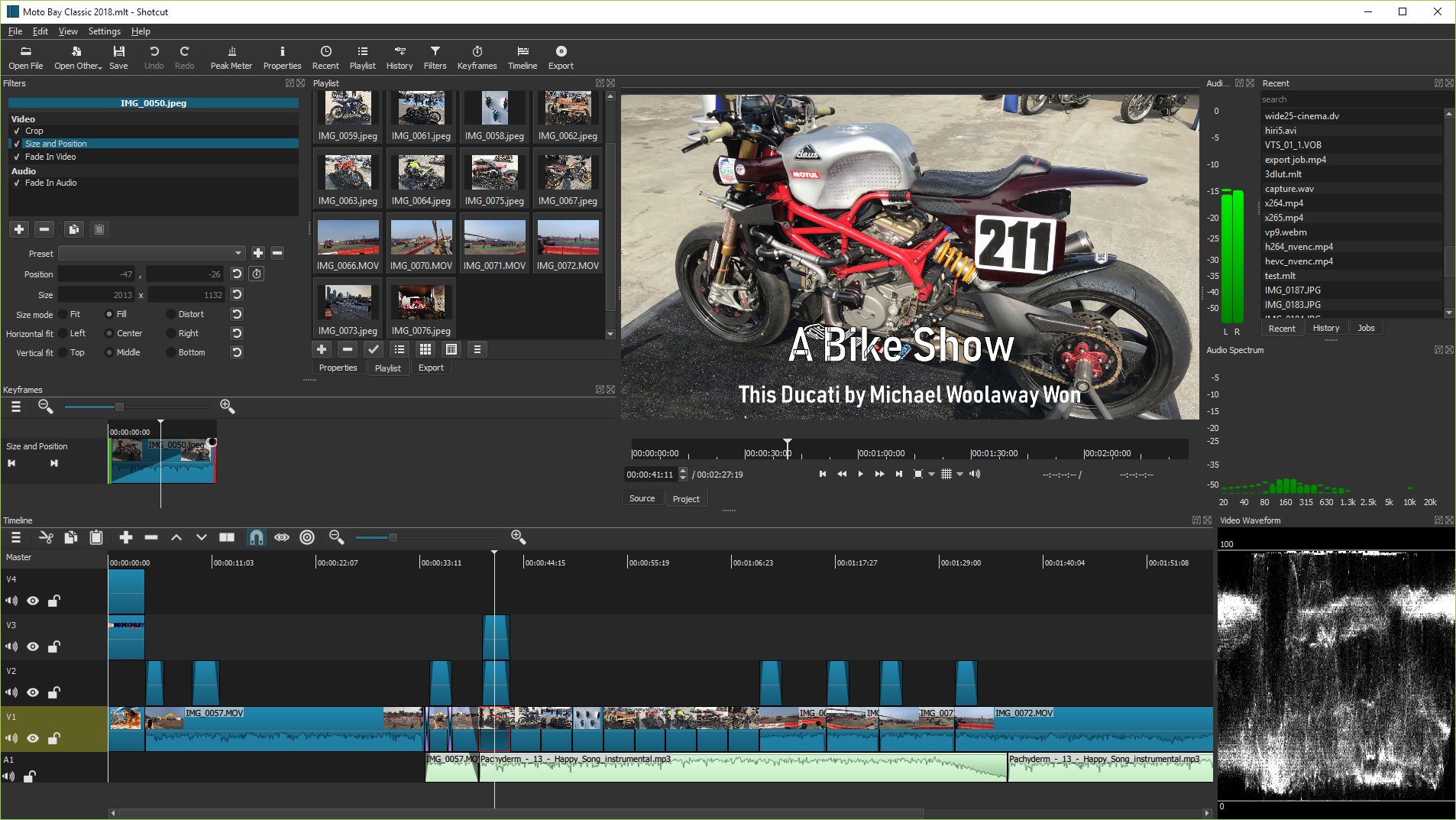 Image Credit: Shotcut Official Website
Shotcut is one of the most trusted and widely used free video editing software options for people who work on low-end or average PCs. It is an open-source video editor, which means it is completely free to use and maintained by a global community of developers. One of the biggest reasons Shotcut is popular among beginners and budget creators is that it offers powerful editing tools without demanding high-end hardware. If you are someone who wants to edit videos for YouTube, social media, school projects, or personal use and your computer struggles with heavy software like Adobe Premiere Pro, Shotcut can be a very practical solution.
What makes Shotcut especially suitable for low-end PCs is its flexible performance settings. While the software supports advanced features such as 4K video editing, color correction, and audio filters, it also allows users to lower preview quality and disable unnecessary effects. This means even computers with limited RAM or older processors can handle basic video editing tasks smoothly. For users with 2GB or 4GB RAM, Shotcut can still work well if projects are kept simple and preview resolution is adjusted. This balance between power and efficiency is one of Shotcut’s strongest advantages.
Another important benefit of Shotcut is its wide format support. It can open and edit most common video, audio, and image formats without requiring additional codec packs. This is extremely helpful for beginners who may not understand technical file formats. You can directly import videos recorded from mobile phones, cameras, or screen recorders and start editing immediately. Shotcut also does not add watermarks to exported videos, which is a major advantage compared to many free video editors that limit users by placing logos on final output.
The user interface of Shotcut may look slightly confusing at first, especially for users who are new to video editing. Unlike some beginner-focused editors, Shotcut does not guide users step by step. Instead, it provides a professional-style workspace with panels for timeline, preview, filters, and media. However, once users spend some time learning the layout, the workflow becomes very efficient. Many low-end PC users prefer Shotcut because it gives them full control over editing without locking features behind a paid version.
In terms of system requirements, Shotcut officially recommends at least 4GB of RAM, but it can still run on systems with lower memory if used carefully. A dual-core processor is usually enough for basic editing, and a dedicated graphics card is not required. Installing Shotcut on an SSD instead of a traditional hard drive can significantly improve loading times and overall performance. Closing background applications while editing also helps reduce lag on weaker systems.
Installing Shotcut is a simple process. Users only need to visit the official Shotcut website, download the installer for their operating system, and follow the on-screen instructions. Once installed, it is recommended to set project settings according to your video resolution and frame rate before starting to edit. For low-end PCs, using 720p resolution during editing and exporting later in 1080p can improve performance without sacrificing quality.
Overall, Shotcut is an excellent choice for creators who want a free, reliable, and powerful video editor that can run on low-end PCs. While it may require a little patience to learn, the features it offers are more than enough for most beginner and intermediate editing needs. With the right settings and workflow, Shotcut proves that you do not need expensive software or powerful hardware to create high-quality videos.
Best for: Beginners and YouTube creators
Platform: Windows, macOS, Linux
Minimum System Requirements
- RAM: 4GB (works on 2GB with small projects)
- CPU: Dual-core processor
- GPU: Not required
- Storage: 500MB free space
Features
- No watermark
- Supports many formats
- Basic effects and filters
- Timeline-based editing
Pros
- 100% free and open-source
- Lightweight compared to pro editors
- Regular updates
Cons
- UI may feel confusing at first
- Not ideal for very old PCs
2. OpenShot Video Editor
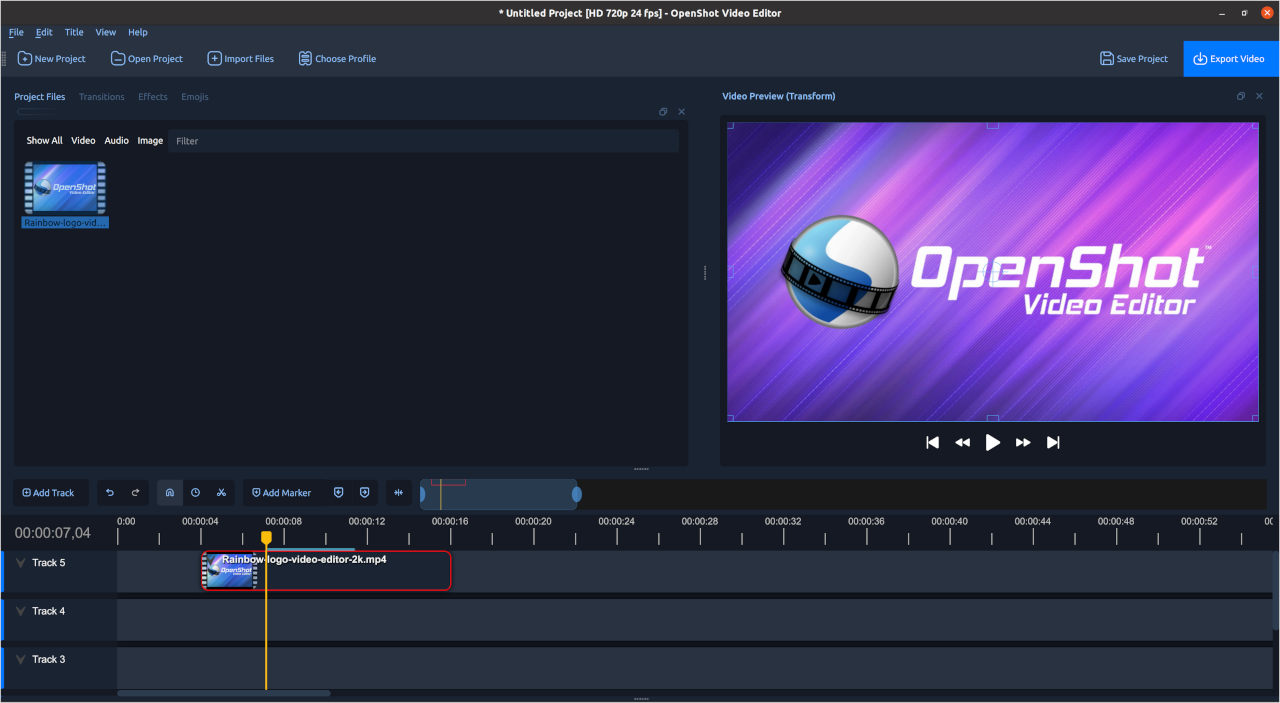 Image Credit: OpenShot Official Website
OpenShot Video Editor is a free and open-source video editing software that is mainly designed for beginners and users who want a simple editing experience on low-end PCs. Unlike professional editors that feel complex and heavy, OpenShot focuses on ease of use and a clean interface. It is ideal for students, first-time editors, teachers, and casual content creators who want to create basic videos without spending hours learning complicated tools. Because of its lightweight design, OpenShot runs reasonably well on older computers, especially when used for short videos and simple edits.
One of the biggest strengths of OpenShot is its drag-and-drop workflow. Users can easily import videos, images, and audio files, then place them on the timeline with very little effort. OpenShot supports unlimited tracks, basic transitions, title animations, trimming, cutting, and speed control. These features are more than enough for creating YouTube videos, school presentations, social media clips, and family videos. Another major advantage is that OpenShot does not add watermarks to exported videos, which makes it suitable for public and professional use even though it is completely free.
When it comes to performance on low-end PCs, OpenShot works best when projects are kept simple. Computers with at least 4GB of RAM usually handle the software smoothly, while systems with lower RAM may experience lag if too many effects are used. Reducing preview quality and avoiding heavy animations can improve performance significantly. Installing OpenShot is straightforward—users only need to download it from the official website and follow the setup instructions. Overall, OpenShot is a great choice for beginners who want an easy, free, and low-resource video editor to start their video editing journey.
Best for: Absolute beginners
Platform: Windows, macOS, Linux
Minimum System Requirements
- RAM: 4GB
- CPU: Dual-core
- GPU: Optional
- Storage: 300MB
Features
- Simple drag-and-drop editing
- Unlimited tracks
- Title animations
- No watermark
Pros
- Very easy to learn
- Clean interface
- Free forever
Cons
- Can lag on very large projects
- Limited advanced features
3. VSDC Free Video Editor (Windows Only)
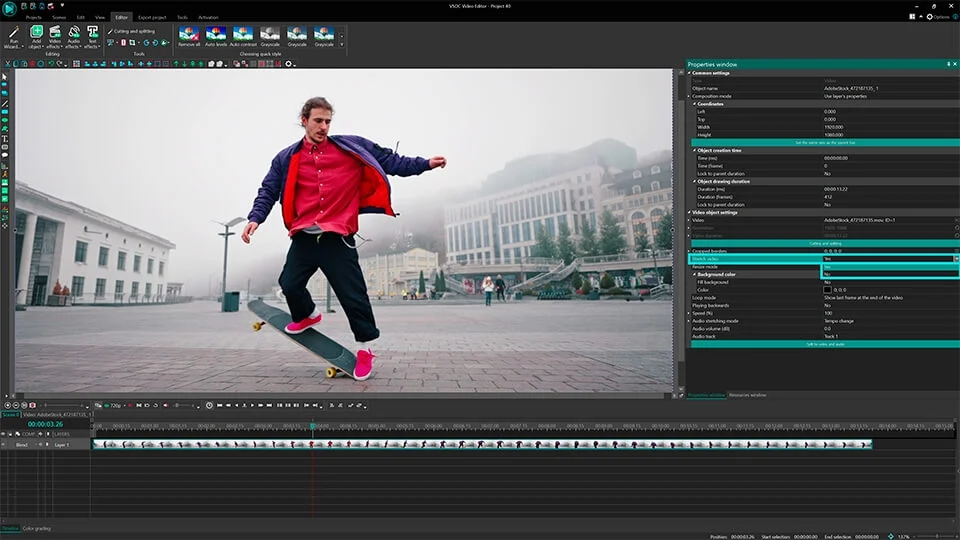 Image Credit: VSDC Official Website
VSDC Free Video Editor is one of the best choices for users who work on very low-end Windows PCs, especially systems with limited RAM such as 2GB or older processors. Unlike many modern video editors that rely heavily on graphics cards and high memory usage, VSDC is optimized to run efficiently on weaker hardware. This makes it a popular option among students, beginners, and users who cannot upgrade their computers but still want to edit videos for YouTube, social media, or personal projects. Since it is completely free and does not add watermarks, VSDC offers excellent value for budget creators.
One of the unique aspects of VSDC is its non-linear editing system, which allows users to place video clips, images, text, and effects anywhere on the timeline. It includes features such as green screen (chroma key), video stabilization, screen recording, basic color correction, and audio editing tools. These features are impressive considering how lightweight the software is. While the interface may look outdated compared to newer editors, it provides precise control once users become familiar with it. VSDC also offers export presets specifically designed for platforms like YouTube, making the rendering process easier for beginners.
In terms of performance, VSDC runs smoothly on low-end PCs when editing standard-resolution videos such as 720p or 1080p. Because it does not depend on a dedicated GPU, it performs well even on older laptops and desktop computers. Installation is simple: users only need to download the free version from the official VSDC website and complete the setup process. Overall, VSDC is an excellent video editor for Windows users who need powerful features, low system requirements, and a completely free solution for video editing on weak or outdated computers.
Best for: Low-end Windows PCs
Platform: Windows
Minimum System Requirements
- RAM: 2GB
- CPU: Intel or AMD (1.5 GHz)
- GPU: Not required
- Storage: 200MB
Features
- Non-linear editing
- Chroma key (green screen)
- Screen recording
- No watermark
Pros
- Excellent performance on weak PCs
- Powerful for a free tool
- Low RAM usage
Cons
- Interface looks outdated
- Slight learning curve
4. Kdenlive
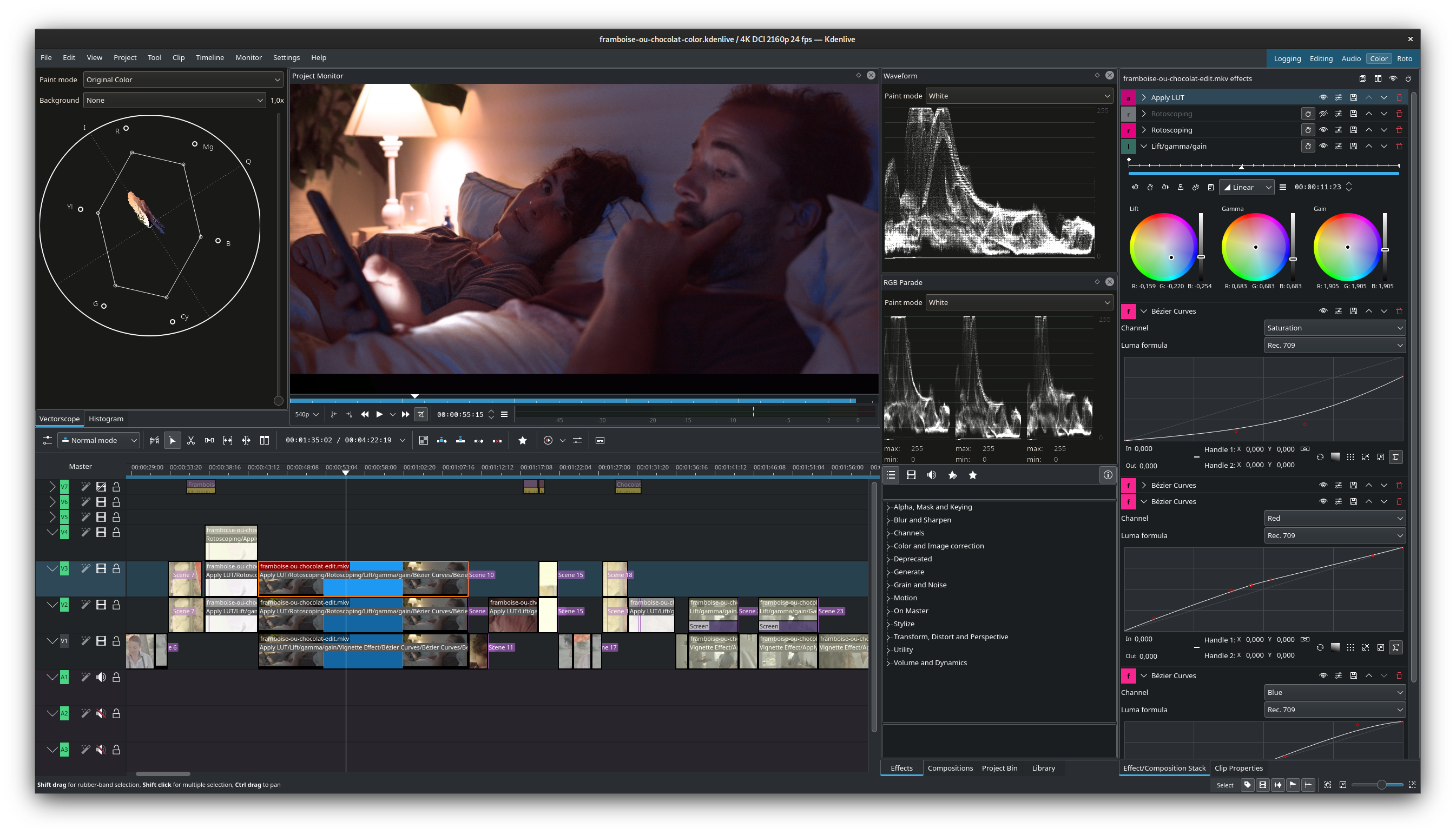 Image Credit: Kdenlive Official Website
Kdenlive is a powerful free and open-source video editor that is often used by intermediate and advanced users who want professional features without paying for expensive software. It works on Windows, Linux, and macOS, and is well known for offering advanced tools while still being usable on low-end or mid-range PCs with the right settings. For users who feel limited by beginner editors like OpenShot but cannot run heavy software such as Adobe Premiere Pro, Kdenlive provides a strong middle ground between performance and functionality.
One of Kdenlive’s standout features is its multi-track timeline, which allows users to work with multiple video and audio layers at the same time. It supports a wide range of effects, transitions, color correction tools, and audio filters, making it suitable for more serious video projects. A very important feature for low-end PCs is proxy editing, which creates lower-resolution copies of videos for smoother playback during editing. This feature significantly reduces lag and makes Kdenlive usable even on computers with limited RAM or older processors. Because the software is open-source, it is regularly updated and improved by the community.
When it comes to system requirements, Kdenlive generally works best with at least 4GB of RAM, although performance improves noticeably with 8GB or more. A dedicated graphics card is not required, but having one can help with rendering speed. Installation is simple and can be done by downloading the installer from the official Kdenlive website. While the interface may look complex at first, users who invest time in learning Kdenlive are rewarded with a powerful editing tool that can produce high-quality videos on a budget. Overall, Kdenlive is an excellent choice for creators who want advanced features on a free platform and are willing to learn a more professional workflow.
Best for: Intermediate users
Platform: Windows, Linux, macOS
Minimum System Requirements
- RAM: 4GB
- CPU: Dual-core
- GPU: Optional
- Storage: 500MB
Features
- Multi-track timeline
- Advanced effects
- Proxy editing (great for low-end PCs)
- No watermark
Pros
- Professional-level features
- Open-source
- Highly customizable
Cons
- Not beginner-friendly
- Needs time to learn
5. Windows Video Editor (Built-in)
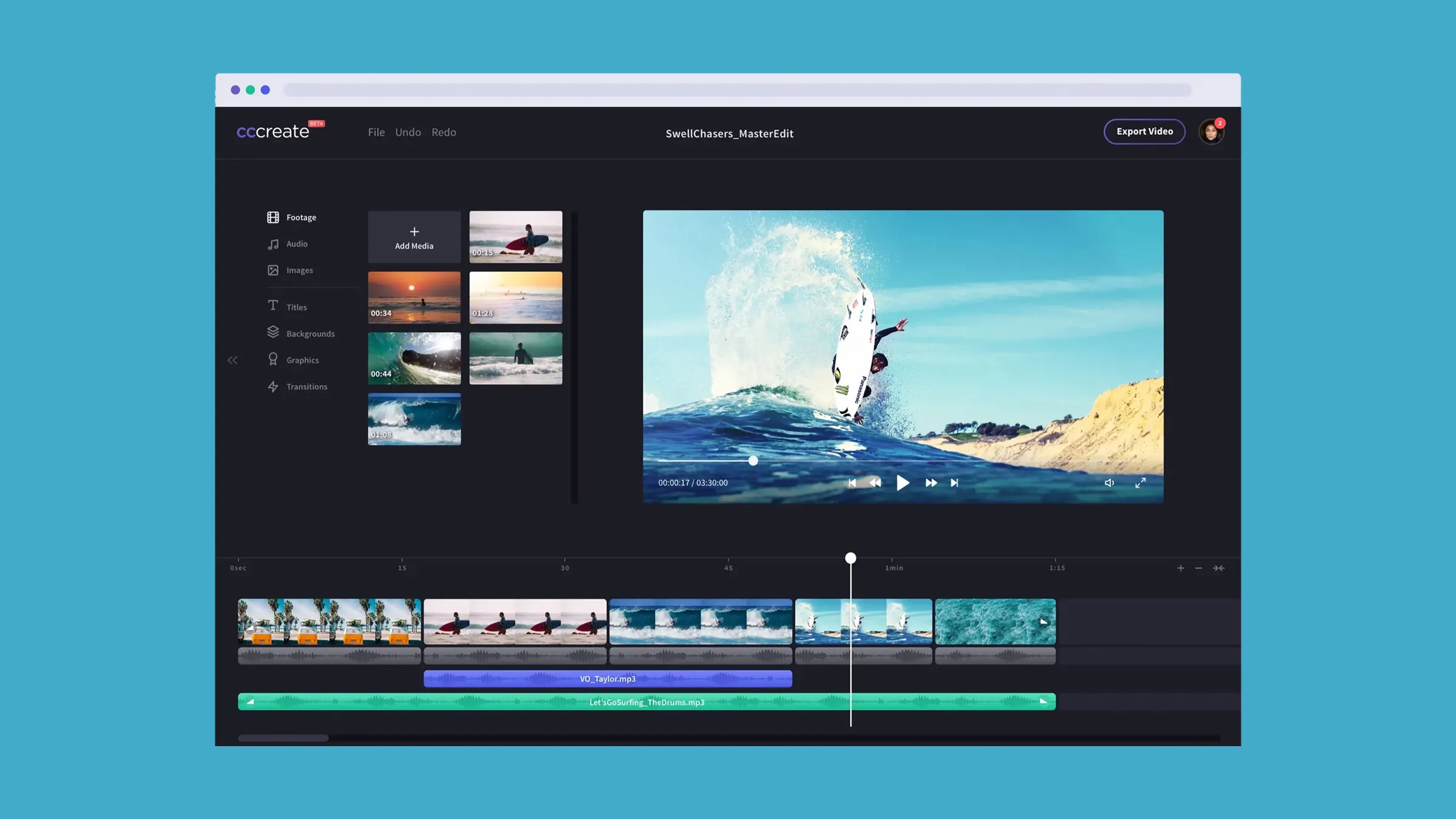 Image Credit: Windows Editor Official Website
Windows Video Editor is a basic video editing tool that comes pre-installed on most Windows computers as part of the Photos app. Because it is built into the operating system, users do not need to download or install any extra software, making it one of the easiest options for very low-end PCs. This editor is especially useful for beginners, students, or casual users who want to perform simple video editing tasks without worrying about system requirements or complicated settings. Since it is designed by Microsoft to run smoothly on a wide range of devices, it works well even on older or weaker computers.
The features offered by Windows Video Editor are simple but practical. Users can trim and split video clips, add text, background music, basic transitions, and apply simple visual effects. It also allows quick exporting of videos in common formats, which is useful for sharing on social media or sending through messaging apps. However, it does not support advanced tools such as multi-track timelines, color grading, or professional effects. Because of these limitations, Windows Video Editor is best suited for short videos, school projects, family videos, or quick edits rather than full-scale YouTube production.
In terms of performance, Windows Video Editor runs smoothly on systems with as little as 2GB of RAM and does not require a dedicated graphics card. Since it is optimized for Windows, crashes and lag are rare compared to third-party editors on low-end hardware. Users can access it by searching for “Video Editor” or opening the Photos app in Windows. Overall, Windows Video Editor is a reliable and lightweight solution for basic video editing needs, making it a good starting point for users who want a simple and hassle-free editing experience on low-end PCs.
Best for: Very low-end PCs
Platform: Windows
Minimum System Requirements
- RAM: 2GB
- CPU: Basic processor
- GPU: Not required
- Storage: Minimal
Features
- Trim, split, and merge videos
- Add text and music
- Simple export options
Pros
- Already installed
- Extremely lightweight
- Perfect for basic edits
Cons
- Very limited features
- Not suitable for YouTube growth
🧩 Comparison Table
| Software | Min RAM | Best For | Watermark | Difficulty |
|---|---|---|---|---|
| Shotcut | 4GB | YouTube videos | ❌ | Medium |
| OpenShot | 4GB | Beginners | ❌ | Easy |
| VSDC | 2GB | Low-end PCs | ❌ | Medium |
| Kdenlive | 4GB | Advanced editing | ❌ | Hard |
| Windows Editor | 2GB | Basic editing | ❌ | Very Easy |
How to Install Video Editing Software
General Installation Steps
- Visit the official website
- Download the installer for your OS
- Open the setup file
- Follow on-screen instructions
- Launch the software
Installation Tips for Low-End PCs
- Close background apps
- Install on SSD if possible
- Avoid installing extra components
🎯 Best Video Editor by Use Case
- Best for 2GB RAM: VSDC, Windows Video Editor
- Best for Beginners: OpenShot
- Best for YouTube: Shotcut
- Best for Advanced Editing: Kdenlive
- Best Lightweight Option: VSDC
Tips to Edit Smoothly on Low-End PCs
- Use 720p preview resolution
- Enable proxy editing
- Avoid heavy effects
- Close Chrome while editing
- Export videos overnight
These small changes make a huge difference.
Conclusion
You don’t need an expensive computer or paid software to start video editing.
With the right free video editor, even a low-end PC can create impressive videos for YouTube, social media, and personal projects.
Start simple, practice regularly, and upgrade only when needed.
Your creativity matters more than your hardware 🚀
Frequently Asked Questions
1. Which video editor is best for 2GB RAM?
VSDC and Windows Video Editor work best.
2. Are these editors really free?
Yes. All listed tools are 100% free with no watermark.
3. Can I use them for YouTube?
Absolutely. Many creators use these editors daily.
4. Do I need a graphics card?
No. All tools work without a dedicated GPU.
Share this post
Danuka Dissanayake
The core team behind Quizontal. We are passionate about making technology accessible, providing high-quality resources for developers and creators, and exploring the cutting edge of AI.
View Profile